

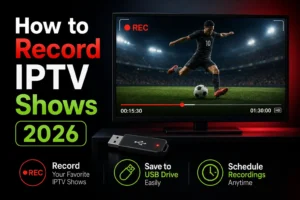
How to Record IPTV Shows & Live TV (2026 Complete Guide)
Missing your favorite show because of work? Want to save the big game
to rewatch later? Unlike cable’s expensive DVR boxes ($10-20/month
rental!), IPTV recording is cheap — or completely free.
In this 2026 guide, I’ll show you 4 proven ways to record IPTV content:
from one-click recording in TiviMate to the “no recording needed”
catch-up method most users don’t know exists.
Quick Overview: Your 4 Options
| Method | Device | Cost | Difficulty |
|---|---|---|---|
| Catch-up TV | Any | Free* | ⭐ Easiest |
| TiviMate Recording | Android/Firestick | $7.99 once | ⭐⭐ Easy |
| OBS Studio | PC | Free | ⭐⭐⭐ Medium |
| VLC Recording | PC | Free | ⭐⭐ Easy |
*Requires provider support
Method 1: Catch-Up TV (No Recording Needed!) ⭐
The secret most IPTV users miss: you often don’t need to record
at all.
What is Catch-Up TV?
Quality IPTV providers store the past 7 days of programming on
their servers. Missed yesterday’s show? Just open the guide and play
it — like it never aired.
How to Use It:
In TiviMate:
- Open the TV Guide
- Navigate BACKWARD in time (left)
- Programs with catch-up show as selectable
- Click any past program → Play
In IPTV Smarters Pro:
- Channels with catch-up show a clock icon 🕐
- Click the channel → Catch Up
- Select the day and program
- Play!
Requirements:
- ✅ Provider must support catch-up (Digital Lizard IPTV includes
7-day catch-up!) - ✅ App must support it (TiviMate, Smarters Pro, OTT Navigator all do)
Pros & Cons:
✅ Zero setup, zero storage needed
✅ Works on every device
✅ 7 days of “recordings” automatically
❌ Not permanent (7-day window)
❌ Not all channels supported
For 90% of “I missed my show” situations, catch-up is all you need.
Method 2: TiviMate Recording (Best for TV Devices) 🏆
TiviMate Premium ($7.99 lifetime) turns your Firestick or Android box
into a full DVR.
Setup Requirements:
- TiviMate Premium — full setup guide here
- Storage: USB drive recommended (recordings are large!)
- HD recording: ~2-4 GB per hour
- Firestick internal storage fills FAST
How to Record (Instant):
- While watching any channel
- Press OK/Select on remote
- Choose Record
- Recording starts immediately
- Stop anytime from same menu
How to Schedule Recordings:
Never miss a show again:
- Open the TV Guide
- Find an UPCOMING program
- Click it → Schedule Recording
- TiviMate records automatically — even if you’re asleep!
Setting Up USB Storage (Firestick):
- Connect OTG cable + USB drive to Firestick
- TiviMate → Settings → Recordings
- Set recording path to USB drive
- Done — recordings save externally
Watching Recordings:
- TiviMate main menu → Recordings
- All saved shows listed with thumbnails
- Play, delete, or manage anytime
Method 3: OBS Studio on PC (Most Powerful) 💪
Free, professional-grade recording on Windows/Mac.
Why OBS?
- Record ANY stream in original quality
- Permanent files you own forever
- Edit, trim, share afterward
- Completely free
Setup Steps:
Step 1: Install Both Tools
- Download OBS Studio from obsproject.com
- Setup IPTV on your PC — Windows guide here
Step 2: Configure OBS
- Open OBS
- Sources panel → + → Window Capture
- Select your IPTV app window (Smarters/VLC)
- Resize to fill canvas
Step 3: Set Recording Quality
- Settings → Output
- Recording format: MP4
- Quality: High Quality, Medium File Size
- Settings → Video → 1920×1080, 30 or 60 FPS
Step 4: Record
- Play your IPTV channel fullscreen
- Click Start Recording in OBS
- Click Stop Recording when done
- File saves to your Videos folder
Pro Tips:
- Record sports at 60 FPS for smooth motion
- Close other apps for best performance
- 1 hour of HD ≈ 2-3 GB storage
Method 4: VLC Recording (Quick & Dirty) ⚡
Already using VLC for IPTV on PC? It records too:
Instant Recording:
- Play your IPTV stream in VLC
- View → Advanced Controls (adds record button)
- Click the red Record button
- Click again to stop
- File saves to Videos folder
Pros & Cons:
✅ Zero extra software
✅ One-click simple
❌ Quality depends on stream
❌ No scheduling
Which Method Should YOU Use?
Choose Catch-Up TV if:
- You just missed recent shows
- You want zero setup
- Your provider supports it (ask them!)
Choose TiviMate if:
- You watch on Firestick/Android box
- You want scheduled recordings
- $7.99 once is acceptable
Choose OBS if:
- You want permanent, high-quality files
- You watch on PC anyway
- You might edit/share recordings
Choose VLC if:
- You need a quick one-time recording
- Simplicity beats features
Recording Sports Events 🏈
Special tips for recording games:
- Schedule with buffer time — start 10 min early, end 30 min
late (overtime!) - Use 60 FPS (OBS) for smooth action
- Check storage first — 3-hour games = 6-10 GB
- Test your setup before the big game
More sports tips: how to watch live sports on IPTV
Troubleshooting Recording Issues
Problem: TiviMate Recording Fails
Fix:
- Check storage space (USB drive full?)
- Verify write permissions
- Try internal storage test first
Problem: Recorded File Won’t Play
Fix:
- Use VLC to play (handles everything)
- Recording may have corrupted — check storage health
Problem: Recording is Choppy
Fix:
- Stream itself was buffering — fix source first:
buffering solutions - Lower recording quality settings
- Close background apps
Problem: No Catch-Up Icons Showing
Fix:
- Provider may not support catch-up — ask them
- EPG must be loaded first: EPG fixes
Legal Note 📋
Recording for personal use (time-shifting) is generally accepted in
most countries — the same principle that made VCRs and DVRs legal.
Don’t: share, upload, or sell recordings — that’s distribution and
illegal everywhere. More on staying safe: is IPTV legal?
Frequently Asked Questions
Can I record on iPhone/iPad?
iOS screen recording works but is clunky. Catch-up TV is the better
iOS solution — iPhone IPTV guide.
How much storage do I need?
- 1 hour HD: 2-4 GB
- 32GB USB drive: ~10 hours of recordings
Can I record two channels at once?
TiviMate Premium supports it if your device and subscription allow
multiple streams.
Does recording use my IPTV connection slots?
Yes — recording counts as one active stream.
Best app for recording overall?
TiviMate Premium — purpose-built DVR experience for $7.99 once.
Final Thoughts
Between catch-up TV (free, automatic) and TiviMate recording ($7.99
lifetime), IPTV recording beats cable DVR in every way — no monthly
rental fees, no storage limits from your provider, no restrictions.
Start with catch-up TV — you might discover you never needed to record
at all.
Get IPTV with 7-Day Catch-Up Included
Digital Lizard IPTV makes recording almost unnecessary:
✅ 7-Day Catch-Up TV Included
✅ Full TiviMate Compatibility (record anything!)
✅ 22,000+ Live Channels
✅ Complete EPG for Scheduling
✅ Multiple Simultaneous Streams
✅ 4K/UHD Quality
✅ $9.99/month
✅ 24-Hour Free Trial
✅ 7-Day Money-Back Guarantee
Never miss a moment!