

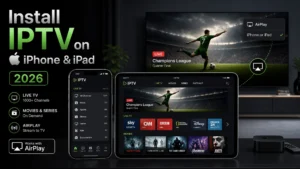
How to Install IPTV on iPhone & iPad (2026 Easy Guide)
Want to watch live TV on your iPhone or iPad? You’re in the right place.
In this 2026 guide, I’ll show you exactly how to install IPTV on any iOS
device in under 5 minutes — using free apps directly from the App Store,
no jailbreak required.
By the end, you’ll be streaming 22,000+ channels wherever you go.
Table of Contents
What You’ll Need
- iPhone or iPad (iOS 14 or newer)
- Active IPTV subscription with M3U URL or Xtream Codes
- Stable internet connection (WiFi or 4G/5G)
- 5 minutes of your time
💡 Pro Tip: Don’t have an IPTV subscription yet? Try Digital Lizard
IPTV with a free 24-hour trial — 22,000+ channels on any device.
Why Watch IPTV on iPhone/iPad?
✅ Watch anywhere — commute, travel, bed
✅ No extra hardware needed
✅ AirPlay to Apple TV or Smart TV
✅ Picture-in-Picture while multitasking
✅ Perfect second screen for sports
Method 1: Smarters Player Lite (Easiest)
The official lightweight app from IPTV Smarters — free on App Store.
Step 1: Download from App Store
- Open App Store on your iPhone/iPad
- Search “Smarters Player Lite”
- Tap Get → Install
- Wait for download
- Tap Open
Step 2: Add Your IPTV Subscription
- Accept terms and conditions
- Choose your login type:
- Login with Xtream Codes API (recommended)
- Load Your Playlist or File URL (M3U)
For Xtream Codes:
- Name: Any name (e.g., “My IPTV”)
- Username: [from your provider]
- Password: [from your provider]
- Server URL: [from your provider]
For M3U URL:
- Playlist Name: Any name
- URL: Paste your M3U link
- Tap Add User
- Wait for channels to load (30-60 seconds)
Step 3: Start Streaming
- Tap Live TV
- Browse categories
- Pick a channel
- Enjoy!
Method 2: GSE Smart IPTV (Most Features)
The most polished IPTV player for iOS.
Step 1: Install GSE Smart IPTV
- Open App Store
- Search “GSE Smart IPTV”
- Install (free version available)
- Open the app
Step 2: Add Remote Playlist
- Tap the menu (☰) icon
- Select Remote Playlists
- Tap + button
- Choose Add M3U URL
- Enter playlist name and M3U URL
- Tap Add
Step 3: Load and Stream
- Tap your playlist name
- Wait for channels to load
- Browse and enjoy!
GSE Premium ($19.99) removes ads and adds:
- Chromecast support
- Parental controls
- EPG improvements
Method 3: IPTVX (Modern Interface)
Beautiful, modern iOS design.
Setup Steps:
- Download IPTVX from App Store
- Open app → Add Playlist
- Enter M3U URL or Xtream Codes
- Load channels
- Stream!
Highlights:
- Native iOS design
- Excellent EPG
- tvOS version available (Apple TV)
Bonus: AirPlay to Big Screen
Watch iPhone IPTV on your TV:
- Play any channel on your iPhone
- Swipe down for Control Center
- Tap Screen Mirroring
- Select your Apple TV or AirPlay TV
- Watch on the big screen!
Troubleshooting Common Issues
Issue 1: Channels Not Loading
Solution:
- Verify subscription is active
- Double-check M3U URL (no extra spaces)
- Switch WiFi to 4G/5G to test
- Restart the app
Issue 2: Buffering on iPhone
Solution:
- Connect to 5GHz WiFi
- Close background apps
- Use a VPN (see our best VPN for IPTV guide)
- More solutions: IPTV buffering fix
Issue 3: App Crashes
Solution:
- Update iOS to latest version
- Reinstall the app
- Free up iPhone storage
- Try a different app from this list
Issue 4: No Sound
Solution:
- Check silent mode switch
- Increase volume in the app
- Try different channel
- Restart iPhone
Best IPTV Apps for iPhone/iPad Compared
| App | Rating | Price | Best For |
|---|---|---|---|
| Smarters Player Lite | ⭐⭐⭐⭐⭐ | Free | Beginners |
| GSE Smart IPTV | ⭐⭐⭐⭐⭐ | Free/$19.99 | Power users |
| IPTVX | ⭐⭐⭐⭐ | $9.99 | Modern design |
| Flex IPTV | ⭐⭐⭐⭐ | Free | Simple use |
For all platforms, see our best IPTV players review.
Data Usage Warning 📱
Streaming IPTV on mobile data uses a lot:
- SD: 1-2 GB per hour
- HD: 3-5 GB per hour
- 4K: 7-15 GB per hour
Tips to Save Data:
- Use WiFi whenever possible
- Lower quality on mobile data
- Monitor usage in iPhone Settings
Tips for Best iPhone IPTV Experience
1. Use 5GHz WiFi
Faster and more stable than 2.4GHz.
2. Enable Picture-in-Picture
Watch while using other apps (iOS 14+).
3. Use a VPN
Bypass throttling and protect privacy. See top VPN picks.
4. Download Offline Content
Some IPTV services offer VOD downloads.
5. Use AirPlay for Big Screen
Best of both worlds — mobile + TV.
Frequently Asked Questions
Is IPTV legal on iPhone?
Yes, using IPTV apps from the App Store with licensed providers is legal.
Do I need to jailbreak my iPhone?
No! All methods in this guide work without jailbreak.
Can I watch on iPhone and TV at the same time?
Depends on your subscription. Digital Lizard IPTV allows up to 4 devices.
Which app is best for iPad?
GSE Smart IPTV — great use of larger screen and split view.
Will it drain my battery?
Streaming uses battery. Keep charger nearby for long sessions.
Can I cast to Chromecast?
Yes, GSE Smart IPTV Premium supports Chromecast.
Other Device Guides
Setting up IPTV on other devices too?
Final Thoughts
Installing IPTV on iPhone or iPad takes just 5 minutes with Smarters
Player Lite or GSE Smart IPTV. No jailbreak, no complicated setup — just
download, login, and stream.
Ready to Stream on Your iPhone?
Digital Lizard IPTV works perfectly on iOS:
✅ 22,000+ Live Channels
✅ 150,000+ Movies & Shows
✅ Works on iPhone, iPad & Apple TV
✅ Up to 4 Devices Simultaneously
✅ Anti-Buffering Technology
✅ 24/7 Customer Support
✅ $9.99/month
✅ 24-Hour Free Trial
✅ 7-Day Money-Back Guarantee
Stream anywhere, anytime!