

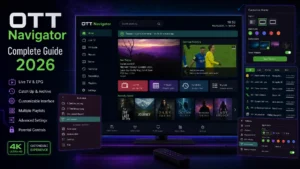
OTT Navigator Setup Guide 2026: Complete Tutorial & Tips
OTT Navigator is the most customizable IPTV player ever made — and it’s
completely free. While TiviMate charges for premium features, OTT
Navigator gives you almost everything at no cost.
The catch? It’s overwhelming for beginners. Dozens of settings, hidden
menus, and configuration options scare people away.
In this 2026 guide, I’ll show you exactly how to install OTT Navigator,
configure it properly, and unlock the settings that make power users
swear by it.
What is OTT Navigator?
OTT Navigator is a free IPTV player for Android devices (Firestick,
Android TV boxes, phones, tablets).
Remember: Like all IPTV players, it doesn’t include channels — you
need a subscription from a provider like Digital Lizard IPTV.
Why Power Users Love It:
✅ Completely free (premium features optional)
✅ Most customizable interface of ANY player
✅ Excellent EPG with multiple view styles
✅ Multiple playlists (free!)
✅ Advanced codec/decoder controls
✅ Custom themes and layouts
✅ Picture-in-Picture
✅ Multi-screen support
OTT Navigator vs Competition:
| Feature | OTT Navigator | TiviMate | Smarters Pro |
|---|---|---|---|
| Price | Free | $7.99 | Free |
| Multiple playlists | ✅ Free | Premium only | ✅ |
| Customization | ⭐⭐⭐⭐⭐ | ⭐⭐⭐⭐ | ⭐⭐ |
| Ease of use | ⭐⭐⭐ | ⭐⭐⭐⭐ | ⭐⭐⭐⭐⭐ |
| Platforms | Android only | Android only | ALL |
Full comparison: best IPTV players 2026
How to Install OTT Navigator
On Firestick
Not in Amazon Appstore, so we sideload:
- Enable Unknown Sources:
- Settings → My Fire TV → Developer Options
- Turn ON “Apps from Unknown Sources”
- Install Downloader from Amazon Appstore
- Download OTT Navigator:
- Open Downloader
- Enter:
ottnav.com/get(or official site URL) - Download and install the APK
- Open OTT Navigator
Firestick basics: Firestick IPTV setup
On Android TV Box / Phone
Even easier:
- Open Google Play Store
- Search “OTT Navigator IPTV”
- Install and open
Details: Android TV Box guide
⚠️ Note: No iOS version. iPhone users see:
iPhone IPTV guide
First-Time Setup (Step-by-Step)
Step 1: Add Your Playlist
- Open OTT Navigator
- On first launch, tap Add Playlist
- Choose your method:
Option A: Xtream Codes (Recommended)
- Select Provider → Xtream Codes
- Enter Server URL, Username, Password
- Tap OK
Option B: M3U URL
- Select Playlist URL
- Paste your M3U link
- Tap OK
Step 2: Wait for Processing
- OTT Navigator downloads channel data
- 22,000 channels take 2-5 minutes first time
- Categories auto-organize
Step 3: EPG Configuration
With Xtream Codes: EPG loads automatically ✅
With M3U: Add EPG manually:
- Settings → EPG
- Add EPG source
- Paste EPG URL from your provider
- Reload
EPG issues? Full fixes: IPTV EPG not working guide
Step 4: Start Watching!
Browse Live TV, use the guide, enjoy.
Essential Settings to Configure
OTT Navigator’s power is in its settings. Here’s what to change:
Player Settings (Fix Most Issues Here!)
Settings → Player:
- Decoder: Hardware (switch to Software if problems)
- Buffer size: Increase if buffering
- Renderer: SurfaceView (default) or TextureView
Interface Customization
Settings → Interface:
- Theme: Choose from multiple styles
- Channel list style: Grid, list, tiles
- Font size: Adjust for your TV distance
- Categories on left/right: Your preference
Performance
Settings → Advanced:
- Parallel loading: ON (faster startup)
- Cache images: ON
- Preview in channel list: Optional (uses bandwidth)
Parental Controls
Settings → Parental Control:
- Set PIN
- Lock adult categories
- Hide locked categories entirely
Hidden Features Most Users Miss
1. Multi-Screen Mode 🔥
Watch up to 4 channels simultaneously:
- Long-press channel → Add to multi-screen
- Perfect for sports Sundays!
- See: watch live sports on IPTV
2. Custom Categories
Create your own channel groups:
- Long-press channel → Add to category
- Create “My Sports”, “Kids”, “News” etc.
3. Channel Zapping History
Press Back to jump between last watched channels — like old-school
TV surfing.
4. Sleep Timer
Settings → find sleep timer — TV turns off automatically.
5. Different Decoders Per Channel
Some channels need software decoding:
- While watching → Settings icon → Decoder
- Set per-channel — OTT remembers!
6. Backup/Restore Settings
Settings → Advanced → Backup — save your entire configuration.
Premium Features (Optional)
Free version covers 95% of needs. Premium ($10-15/year) adds:
- No startup delay screen
- Recording support
- Reminders for programs
- Some extra themes
Verdict: Try free first — most users never need premium.
Troubleshooting OTT Navigator
Problem: Channels Buffering
Fix:
- Settings → Player → Increase buffer
- Switch decoder Hardware ↔ Software
- Use Ethernet + VPN
- Full guide: IPTV buffering fix
Problem: Channels Won’t Load
Fix:
- Verify subscription active
- Re-check credentials
- Delete and re-add playlist
- More: channels not loading fixes
Problem: App Feels Slow
Fix:
- Settings → Interface → Disable channel previews
- Clear app cache
- Disable animations
Problem: EPG Missing
Fix:
- Add EPG URL (M3U users)
- Settings → EPG → Reload
- Full guide: EPG not working fixes
Problem: Audio Sync Issues
Fix:
- While watching → Settings → Audio offset
- Adjust milliseconds until synced
Who Should Use OTT Navigator?
✅ Perfect For:
- Power users who love customization
- Multiple playlist users (free!)
- Anyone avoiding TiviMate’s $7.99 fee
- Multi-screen sports watchers
❌ Not Ideal For:
- Complete beginners → use IPTV Smarters Pro
- iPhone/iPad users → see iOS options
- Samsung/LG TV users → Samsung guide | LG guide
- Those wanting zero configuration → TiviMate
Frequently Asked Questions
Is OTT Navigator really free?
Yes — all core features free. Optional premium for recording/extras.
Does it include channels?
No, it’s a player only. Pair it with a quality IPTV subscription.
OTT Navigator vs TiviMate — which is better?
OTT = more features free, steeper learning curve.
TiviMate = more polished, $7.99 for full power.
Both excellent — see full comparison.
Why isn’t it in Amazon Appstore?
Store policies. Sideloading from the official site is safe and takes
2 minutes.
Can I use multiple IPTV subscriptions?
Yes! Unlimited playlists — completely free (TiviMate charges for this).
Is it safe?
Yes, download only from the official site or Google Play.
Final Thoughts
OTT Navigator rewards the time you invest in it. Spend 30 minutes
configuring it properly, and you’ll have a completely personalized IPTV
experience that free apps shouldn’t be able to offer.
For maximum performance, pair it with a provider offering full Xtream
Codes support and complete EPG data.
The Perfect Match for OTT Navigator
Digital Lizard IPTV works flawlessly with OTT Navigator:
✅ Full Xtream Codes API Support
✅ Complete EPG Data (auto-loads)
✅ 22,000+ Live Channels
✅ Catch-Up TV Support
✅ 4K/UHD Streams
✅ Anti-Buffering Technology
✅ 24/7 Support
✅ $9.99/month
✅ 24-Hour Free Trial
✅ 7-Day Money-Back Guarantee
Customize everything. Pay nothing extra.