

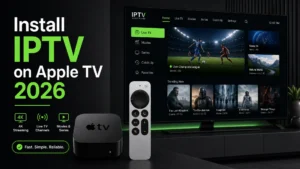
How to Install IPTV on Apple TV (2026 Complete Guide)
Apple TV is one of the best devices for IPTV streaming — powerful
hardware, beautiful interface, and stunning 4K support. In this 2026
guide, I’ll show you 3 easy methods to install IPTV on Apple TV 4K or
HD, all from the official App Store.
No jailbreak, no sideloading — just simple, legal apps that work
perfectly.
Table of Contents
What You’ll Need
- Apple TV HD or Apple TV 4K (tvOS 15+)
- Active IPTV subscription
- Stable internet (10+ Mbps HD, 25+ Mbps 4K)
- Apple ID logged in
- 5-10 minutes
💡 Pro Tip: Need an IPTV subscription? Digital Lizard IPTV offers
a 24-hour free trial with full 4K support on Apple TV.
Why Apple TV is Great for IPTV
✅ Powerful A15 chip (4K model) — zero lag
✅ Beautiful tvOS interface
✅ True 4K HDR / Dolby Vision support
✅ Siri Remote voice search
✅ AirPlay from iPhone
✅ Rock-solid stability
Method 1: IPTVX (Best for Apple TV)
IPTVX is designed specifically for tvOS — the most native experience.
Step 1: Install IPTVX
- Open App Store on Apple TV
- Search “IPTVX”
- Click Get (one-time $9.99 or check current price)
- Wait for installation
- Open the app
Step 2: Add Your Playlist
- Select Add Playlist
- Choose input method:
- M3U URL — paste your playlist link
- Xtream Codes — enter server, username, password
Easy trick: IPTVX shows a web address (like iptvx.one/upload) — open
it on your phone and paste your M3U URL there. No typing with the remote!
Step 3: Load and Stream
- Playlist loads automatically
- EPG populates within minutes
- Browse Live TV, Movies, Series
- Enjoy 4K streaming!
Method 2: GSE Smart IPTV (Free Option)
Popular free app with a solid tvOS version.
Setup Steps:
- App Store → Search “GSE Smart IPTV”
- Install and open
- Go to Remote Playlists
- Tap + → Add M3U URL
- Enter playlist name and URL
- Load and stream
Tip: Use the GSE web uploader from your phone to avoid typing URLs
with the Siri Remote.
Method 3: Smarters Player Lite
Official app from the IPTV Smarters team.
Setup Steps:
- App Store → Search “Smarters Player Lite”
- Install and open
- Choose Xtream Codes API
- Enter your credentials
- Channels load automatically
- Start watching!
Easy Login Trick: Use Your iPhone
Typing with Siri Remote is painful. Use these shortcuts:
Option 1: iPhone Keyboard
When a text field appears on Apple TV, a notification pops on your
iPhone — tap it and type with your phone keyboard.
Option 2: Web Upload
Apps like IPTVX and GSE offer web uploaders — paste your M3U from any
browser.
Option 3: AirPlay Instead
Setup IPTV on your iPhone (see our iPhone IPTV guide)
and AirPlay to Apple TV.
Troubleshooting Common Issues
Issue 1: Channels Won’t Load
Solution:
- Verify subscription is active
- Check M3U URL for typos
- Restart Apple TV (Settings → System → Restart)
Issue 2: Buffering on Apple TV
Solution:
- Use Ethernet (Apple TV 4K has Gigabit port!)
- Enable VPN on your router
- Check our buffering fix guide
Issue 3: App Not in App Store
Solution:
- Check your region’s App Store
- Update tvOS to latest version
- Try alternative app from this guide
Issue 4: 4K Not Working
Solution:
- Settings → Video and Audio → Format → 4K HDR
- Verify HDMI 2.0+ cable
- Confirm your IPTV plan includes 4K
Best IPTV Apps for Apple TV Compared
| App | Rating | Price | Best For |
|---|---|---|---|
| IPTVX | ⭐⭐⭐⭐⭐ | $9.99 | Best tvOS experience |
| GSE Smart IPTV | ⭐⭐⭐⭐ | Free | Budget users |
| Smarters Player Lite | ⭐⭐⭐⭐ | Free | Xtream Codes users |
| Flex IPTV | ⭐⭐⭐⭐ | Free | Simple interface |
Full comparison: best IPTV players 2026.
Apple TV vs Other Devices for IPTV
| Feature | Apple TV 4K | Firestick 4K | Android Box |
|---|---|---|---|
| Performance | Excellent | Good | Varies |
| Price | $129-149 | $49-59 | $30-200 |
| 4K HDR | Best-in-class | Good | Varies |
| Ease of Use | Easiest | Easy | Medium |
| App Options | App Store only | Sideload OK | Unlimited |
Other guides: Firestick |
Android Box
Optimization Tips for Apple TV
1. Use Ethernet
Apple TV 4K has Gigabit Ethernet — use it for zero buffering.
2. Match Frame Rate
Settings → Video and Audio → Match Content → Match Frame Rate ON.
3. Enable HDR Correctly
Only enable 4K HDR if your TV truly supports it.
4. Use VPN on Router
Apple TV doesn’t support all VPN apps natively — install VPN on your
router instead. See best VPN for IPTV.
5. Restart Weekly
Keeps tvOS running smooth.
Frequently Asked Questions
Is IPTV legal on Apple TV?
Yes, all apps in this guide are official App Store apps. Use licensed
IPTV providers.
Do I need to jailbreak Apple TV?
No! Everything works through the official App Store.
Which Apple TV models work?
Apple TV HD (2015+) and all Apple TV 4K models.
Can I record shows?
Recording is limited on tvOS. Use catch-up TV features instead.
Does Siri work with IPTV apps?
Basic navigation yes, but channel search depends on the app.
How many devices can stream at once?
Digital Lizard IPTV allows up to 4 simultaneous devices.
Final Thoughts
Apple TV offers the smoothest, most premium IPTV experience of any
device. With IPTVX or GSE Smart IPTV, setup takes just minutes — and the
4K quality is unmatched.
Ready to Stream in True 4K?
Digital Lizard IPTV is fully optimized for Apple TV:
✅ 22,000+ Live Channels
✅ True 4K/UHD Streams (perfect for Apple TV 4K)
✅ Works with IPTVX, GSE, Smarters
✅ Anti-Buffering Technology
✅ 24/7 Customer Support
✅ $9.99/month
✅ 24-Hour Free Trial
✅ 7-Day Money-Back Guarantee
Stream premium on Apple TV!